



How to Create Material Bottom Navigation Bar in Android
October 2016, Android released the latest version of Android Support Library, revision 25.0.0, in which the native support to add Bottom Navigation Bar to Android has been added. Now it has a very limited set of features, but in near future, we can expect from Google to be adding more features very soon. In this article, we learn how to create a bottom navigation bar in android app.
Importance of Bottom Navigation in Mobile App Development Services
A bottom navigation bar enhances the user experience by providing quick access to key sections of an app. It plays a crucial role in Mobile App Development Services, ensuring seamless navigation and better engagement.
Steps to Create a Bottom Navigation Bar in Android
Follow these steps to implement a material bottom navigation bar in an Android application:
1: Create new project (eg. BottomNavigationBar)
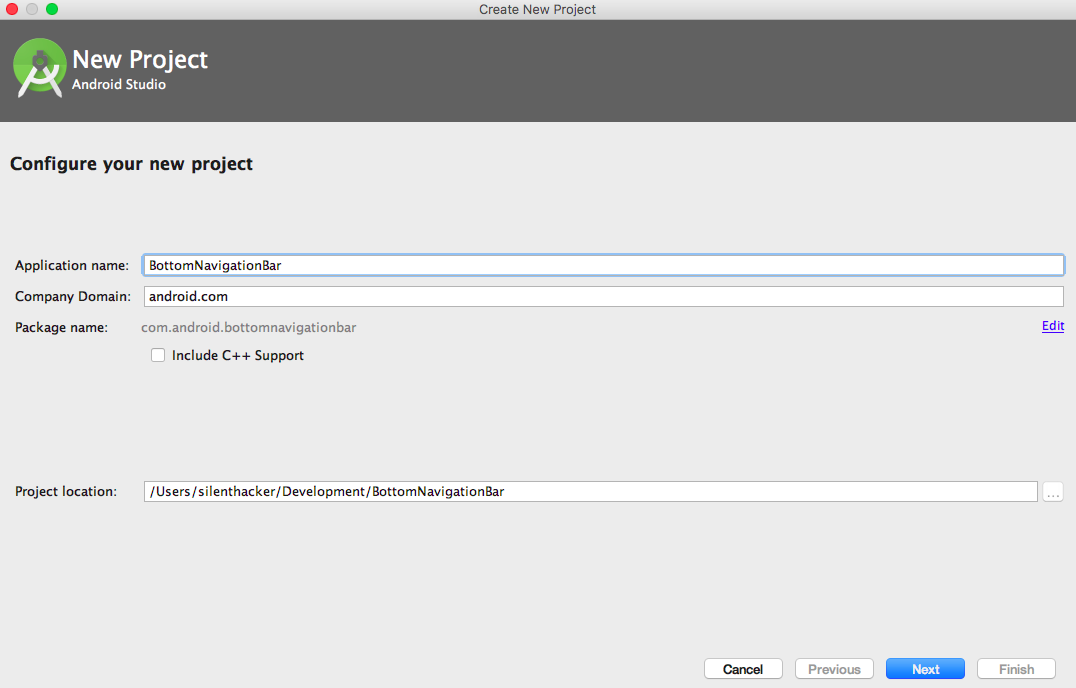
2: Select Target SDK Version
-2.png)
3: Now select Empty Activity
-2.png)
4: now click on Finish button and project is setup
-2.png)
5: Project Structure
-2.png)
6:Now add a dependency in Gradle file and sync. the project
<code>dependencies { ... compile 'com.android.support:design:25.0.0'}</code>
7: Now UI part
7.1 Add bottom navigation view in activity_main.xml
File: res/layout/activity_main.xml
<code><?xml version="1.0" encoding="utf-8"?><LinearLayout xmlns:android="http://schemas.android.com/apk/res/android" xmlns:app="http://schemas.android.com/apk/res-auto" xmlns:tools="http://schemas.android.com/tools" android:id="@+id/activity_main" android:layout_width="match_parent" android:layout_height="match_parent" android:orientation="vertical" tools:context="com.android.bottomnavigationbar.activity.MainActivity"> <FrameLayout android:id="@+id/frameLayout" android:layout_width="match_parent" android:layout_height="0dp" android:layout_weight="1" /> <android.support.design.widget.BottomNavigationView android:id="@+id/bottomNavigation" android:layout_width="match_parent" android:layout_height="wrap_content" android:layout_gravity="start" app:itemBackground="@color/accent" app:itemIconTint="@color/icons" app:itemTextColor="@color/secondary_text" app:menu="@menu/bottom_menu"> </android.support.design.widget.BottomNavigationView></LinearLayout></code>
7.2 Now create menu for bottom navigation view in Menu directory
File: res/menu/bottom_menu.xml
<code><?xml version="1.0" encoding="utf-8"?><menu xmlns:android="http://schemas.android.com/apk/res/android"> <item android:id="@+id/menu_home" android:icon="@drawable/ic_home_black_24dp" android:title="Home"/> <item android:id="@+id/menu_offers" android:icon="@drawable/ic_style_black_24dp" android:title="Offers"/> <item android:id="@+id/menu_search" android:icon="@drawable/ic_search_black_24dp" android:title="Search"/> <item android:id="@+id/menu_profile" android:icon="@drawable/ic_person_black_24dp" android:title="Profile"/></menu></code>
7.3 Now add colors for all menu items in bottom navigation view
File: res/values/colors.xml
<code><?xml version="1.0" encoding="utf-8"?><resources> <color name="primary">#03A9F4</color> <color name="primary_dark">#0288D1</color> <color name="primary_light">#B3E5FC</color> <color name="accent">#03A9F4</color> <color name="primary_text">#212121</color> <color name="secondary_text">#757575</color> <color name="icons">#FFFFFF</color> <color name="divider">#BDBDBD</color> <color name="fragment_1">#006064</color> <color name="fragment_2">#7b1fa2</color> <color name="fragment_3">#c2185b</color> <color name="fragment_4">#303f9f</color></resources></code>
7.4 Now add strings for each menu item
File: res/values/strings.xml
<code><resources> <string name="app_name">Bottom Navigation Bar</string> <string name="home_fragment">Home</string> <string name="offers_fragment">Offers</string> <string name="search_fragment">Search</string> <string name="profile_fragment">Profile</string></resources></code>
So now UI part is done.
8:Now define fragments for each menu item click event. So create a fragment class and layout for that fragment. For this example, I will create four fra
gments which could be switched by clicking on bottom navigation items.
8.1 fragment_home.XML Layout
File: res/layout/fragment_home.xml
<code><FrameLayout xmlns:android="http://schemas.android.com/apk/res/android" xmlns:tools="http://schemas.android.com/tools" android:layout_width="match_parent" android:layout_height="match_parent" android:background="@color/fragment_1" tools:context="com.android.bottomnavigationbar.fragment.HomeFragment"> <TextView android:layout_width="match_parent" android:layout_height="match_parent" android:text="@string/home_fragment" android:gravity="center" android:textColor="#FFFFFF"/></FrameLayout></code>
8.2 HomeFragment class file
File: src/fragment/HomeFragment.java
<code>package com.android.bottomnavigationbar.fragment;import android.content.Context;import android.os.Bundle;import android.support.v4.app.Fragment;import android.view.LayoutInflater;import android.view.View;import android.view.ViewGroup;import android.widget.TextView;import com.android.bottomnavigationbar.R;/*** A simple {@link Fragment} subclass.*/public class HomeFragment extends Fragment { private OnFragmentInteractionListener listener; public static HomeFragment newInstance() { return new HomeFragment(); } @Override public void onCreate(Bundle savedInstanceState) { super.onCreate(savedInstanceState); } @Override public View onCreateView(LayoutInflater inflater, ViewGroup container, Bundle savedInstanceState) { return inflater.inflate(R.layout.fragment_home, container, false); } @Override public void onAttach(Context context) { super.onAttach(context); if (context instanceof OnFragmentInteractionListener) { listener = (OnFragmentInteractionListener) context; } else { throw new RuntimeException(context.toString() + " must implement OnFragmentInteractionListener"); } } @Override public void onDetach() { super.onDetach(); listener = null; } public interface OnFragmentInteractionListener { }}</code>
Similarly, you can create rest of the fragments for other menu items.
9:Now define bottom navigation view in main activity
<code>bottomNavigationView = (BottomNavigationView) findViewById(R.id.bottomNavigation);</code>
10:Now define click events of bottom navigation menu items
<code>bottomNavigationView.setOnNavigationItemSelectedListener(new BottomNavigationView.OnNavigationItemSelectedListener() { @Override public boolean onNavigationItemSelected(@NonNull MenuItem item) { Fragment fragment = null; switch (item.getItemId()) { case R.id.menu_home: fragment = HomeFragment.newInstance(); break; case R.id.menu_offers: fragment = OffersFragment.newInstance(); break; case R.id.menu_search: fragment = SearchFragment.newInstance(); break; case R.id.menu_profile: fragment = ProfileFragment.newInstance(); break; } if (fragment != null) { FragmentTransaction fragmentTransaction = getSupportFragmentManager().beginTransaction(); fragmentTransaction.replace(R.id.frameLayout, fragment); fragmentTransaction.commit(); } return true; }});</code>
Final code for MainActivity.java class
File: src/activity/MainActivity.java
<code>package com.android.bottomnavigationbar.activity;import android.support.annotation.NonNull;import android.support.design.widget.BottomNavigationView;import android.support.v4.app.Fragment;import android.support.v4.app.FragmentTransaction;import android.support.v7.app.AppCompatActivity;import android.os.Bundle;import android.view.MenuItem;import com.android.bottomnavigationbar.R;import com.android.bottomnavigationbar.fragment.HomeFragment;import com.android.bottomnavigationbar.fragment.OffersFragment;import com.android.bottomnavigationbar.fragment.ProfileFragment;import com.android.bottomnavigationbar.fragment.SearchFragment;public class MainActivity extends AppCompatActivity implements HomeFragment.OnFragmentInteractionListener, OffersFragment.OnFragmentInteractionListener, SearchFragment.OnFragmentInteractionListener, ProfileFragment.OnFragmentInteractionListener { private BottomNavigationView bottomNavigationView; @Override protected void onCreate(Bundle savedInstanceState) { super.onCreate(savedInstanceState); setContentView(R.layout.activity_main); FragmentTransaction fragmentTransaction = getSupportFragmentManager().beginTransaction(); fragmentTransaction.replace(R.id.frameLayout, HomeFragment.newInstance()); fragmentTransaction.commit(); bottomNavigationView = (BottomNavigationView) findViewById(R.id.bottomNavigation); bottomNavigationView.setOnNavigationItemSelectedListener(new BottomNavigationView.OnNavigationItemSelectedListener() { @Override public boolean onNavigationItemSelected(@NonNull MenuItem item) { Fragment fragment = null; switch (item.getItemId()) { case R.id.menu_home: fragment = HomeFragment.newInstance(); break; case R.id.menu_offers: fragment = OffersFragment.newInstance(); break; case R.id.menu_search: fragment = SearchFragment.newInstance(); break; case R.id.menu_profile: fragment = ProfileFragment.newInstance(); break; } if (fragment != null) { FragmentTransaction fragmentTransaction = getSupportFragmentManager().beginTransaction(); fragmentTransaction.replace(R.id.frameLayout, fragment); fragmentTransaction.commit(); } return true; } }); }}</code>
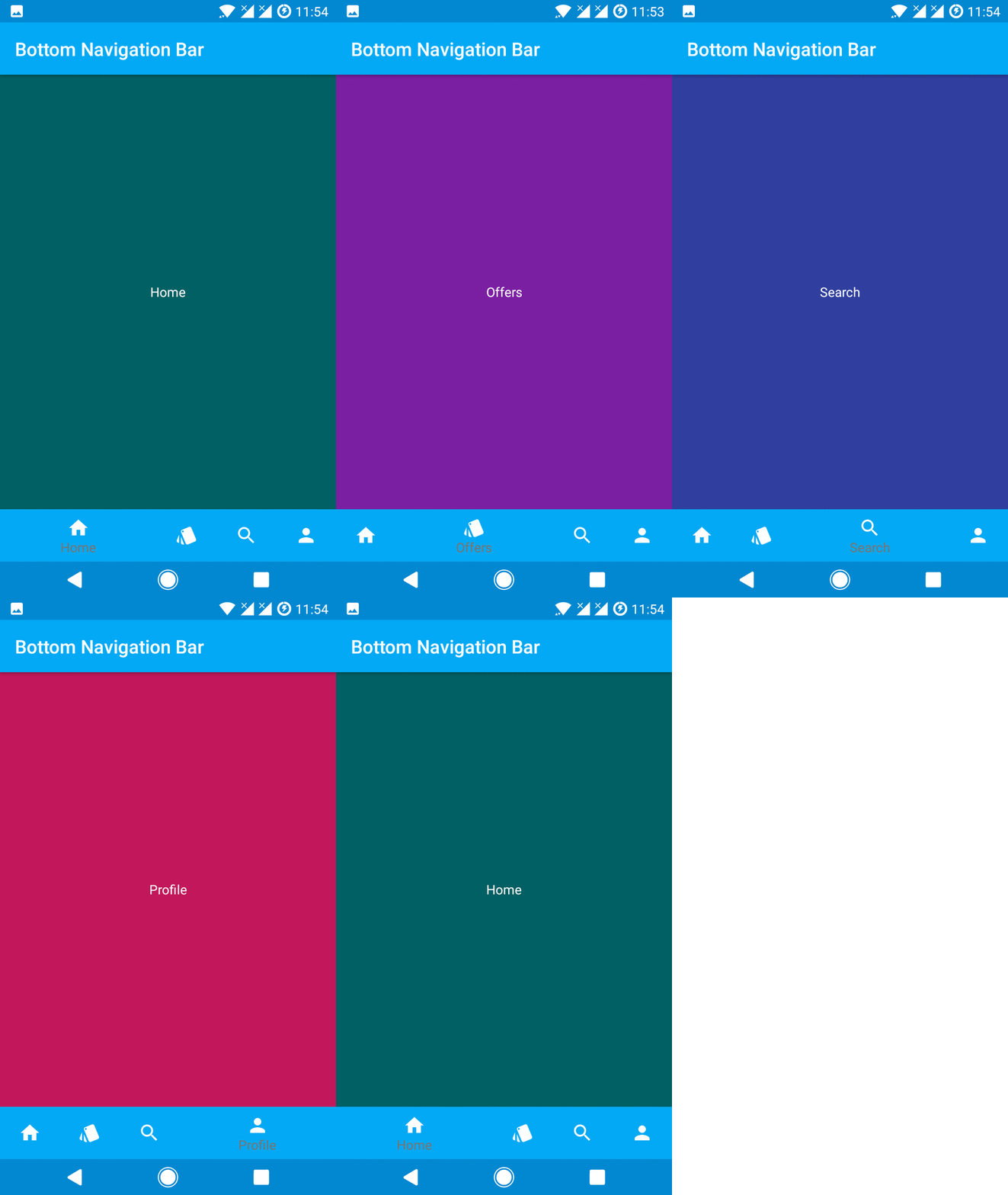
11:Now run the App and enjoy the material bottom navigation bar in your android app
12:Limitations of bottom navigation view
There are some few limitations in bottom navigation view
-
Only five items can be added at a time in bottom view
-
Text and icon size can’t be resized
-
There is no way to hide title of non-selected items
-
Selected item background can’t be colored
-
Swiping of views can’t be done
-
There is no integration exist for FAB, Snack bar, and Coordination layout
Although there are some limitations in bottom navigation viewbutit is very popular for beautiful app design in Android app development
Download the demo project → Download Demo
Happy Coding :) !!!








-11.webp?height=245&name=Blog(%20The%20Magic%20of%20Reading)-11.webp)








.webp?height=245&name=Hands-on%20Learning%20to%20Revolutionize%20Core%20Education-09-09%20(1).webp)



.webp?height=245&name=celebrating-the-incredible-staff-at-ocasa-01%20(1).webp)






-1.png?height=245&name=image%20(14)-1.png)



.webp?height=245&name=mothers%20day-18%20(1).webp)







.webp?height=245&name=smart%20learning-16%20(2).webp)


.webp?height=245&name=Library1.1%20(1).webp)









%20_653%20X%20518%20_%202%20copy%206.webp?height=245&name=Blog%20images(Empowering%20Young%20Innovators)%20_653%20X%20518%20_%202%20copy%206.webp)


.webp?height=245&name=Main%20Banner@2x%20(1).webp)